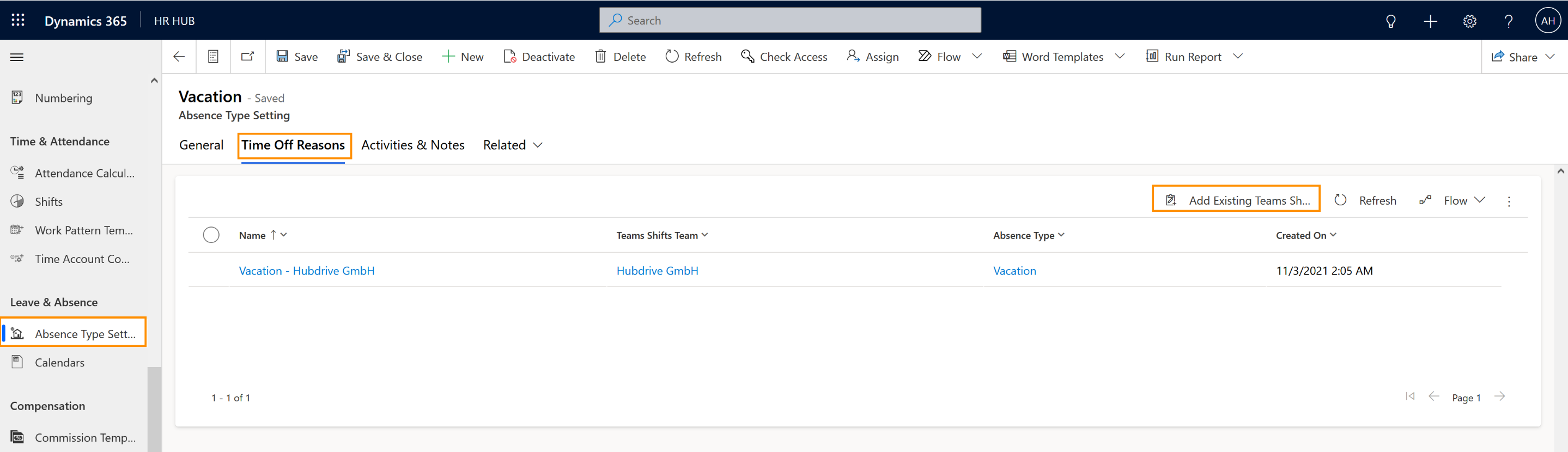
- Select one absence type and click on the flow to retrieve all the Time Off reasons. This will trigger the flow, which will then bring all the time off reasons for all the absence types that you have in the system. You only have to do this one time in order to avoid duplicates.
- If the Organization has multiple teams, then in Microsoft Shifts each team has its own time off reasons, so in each Absence Type Settings, the HR Manager user has to add similar/equivalent time off reasons from all teams.
For Example:
2 Time off Reason Records.
Vacations - Team A
Vacations - Team B
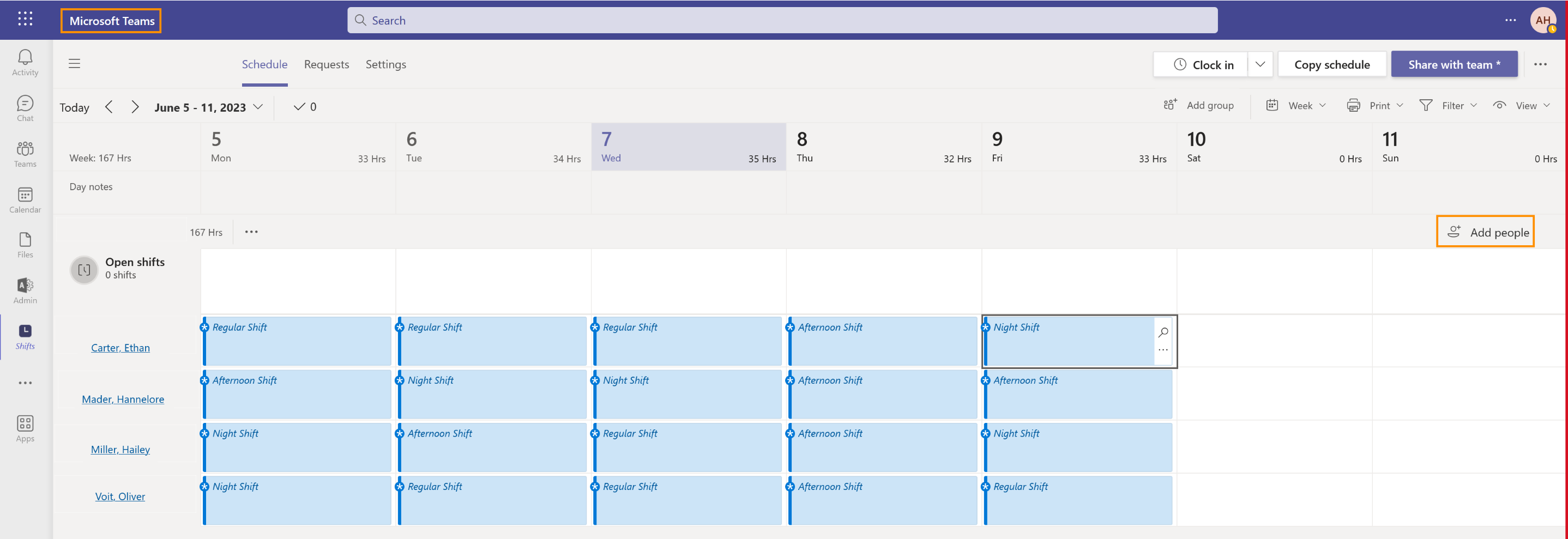
Once the configuration is done, the Manager can create a private team and add participants to the calendar.
Now, if needed, participants can rearrange their schedules, create time off, request sick day and so on.
Possible Customizations (
screenshot):
- The flow to retrieve all Shifts can be customized to trigger multiple times a day
- The flow to retrieve all Shifts can be customized to trigger on creation of a Teams shifts shift in a Team. (Therefore he needs to be copied for each team for which he should trigger directly)
Covered Use Cases:
1. When a working Shift gets created in Teams Shifts, it gets synchronized with the next flow trigger to Hubdrive. It gets connected to a Daily Summary. The calculation for this Daily Summary starts and calculates the allocated hours/minutes of all connected Teams Shift Shifts.
2. When a working Shift gets updated in Teams Shifts, it gets synchronized with the next flow trigger to Hubdrive. The calculation for the connected Daily Summary starts and calculates the allocated hours/minutes of all connected Teams Shift Shifts.
3. Unpaid Breaks within a Teams Shifts Shift will not be deducted from the allocated Hours, when they are transferred to Hubdrive.