Create Templates for On-/Off-/Crossboarding
Objective
In every organization, employees start and employees quit. They switch to a different position. For all of this, they need to be onboarded to their job, cross boarded to a different position, or offboarded to ensure a smooth handover to the next person who takes their job. On this page, you will learn how to create Templates which serve as blueprints for all your employees' On-, Off-, or Crossboarding. Distributing On-, Off-, and Crossboarding to your employees based on those blueprints will ensure that every one of these processes runs smoothly and no tasks are forgotten.
Process
HR Manager
Creates Templates
HR Manager
Adds responsible roles
Click Through
- Start in HR HUB
- Under [Recruiting], navigate to On-/Offboarding Templates
- Click on + New in the top ribbon
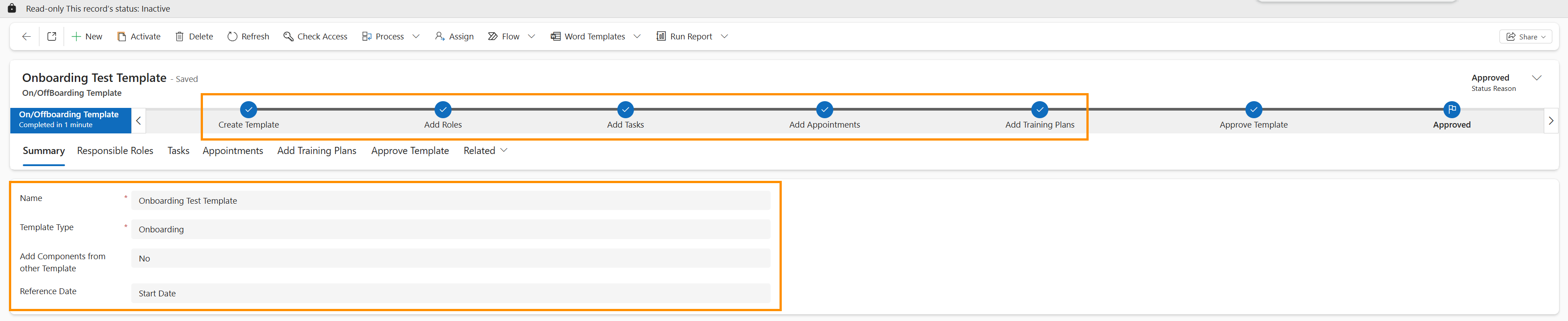
- Give your new template a name
- We recommend the name to describe the content of the template, e.g. "Onboarding Sales"
- Select the Template Type
- Type Onboarding will group tasks around the Start Date in an employee's Digital Personnel File
- Type Offboarding will group tasks around the Last Work Day in an employee's Digital Personnel File
- Type Crossboarding will let you choose an individual Change Date to group tasks around upon rollout
- This information is also displayed in the locked field Reference Date.
- Add Components from other Template is optional
- If you set it to Yes, you can copy/duplicate tasks from an already existing On-/Off-/Crossboarding template into this new one. Select the desired template in the Lookup field that shows up after selecting "Yes".
- If you leave it on No, you start with a blank template
- After filling this information, Save for the first time
- Use the Business Process Flow to navigate from Create Template to Add Roles, Add Tasks, Add Appointements, Add Training Plans and Add Training Plans (Screenshot) (Screenshot)
- You need to confirm that the essential data has been filled in the first section to be able to proceed
- Use the Business Process Flow to Approve the Template
- Save & Close
Hint
- The relative roles in the template allow you to define who will be responsible for a task without already assigning it to a specific person. For example, if you put in "HR Manager" as the responsible person for a task, the system will, upon distribution of the template, read which HR Manager is responsible for that employee as defined in the employee's Digital Personnel File, and automatically assign "HR Manager" tasks to that person.
- Usage of relative roles is optional – you can also distribute tasks to a specific person on template level.
Recommendations
Simply follow along with the Business Process Flow on top of the template creation form. It leads you through all the steps to enrich your template with the necessary information, from adding relative roles to adding tasks and appointment.
Result
After you have created your Templates once, you can use and reuse them every time you need to on-, off-, or crossboard an employee.