The objective of this page is to demonstrate how Supervisors can approve the overtime of their employees. This is necessary in order to enable them to request a leave based on the hours created with Overtime.
Supervisor: Approve Overtime
Objective
Process
Employee
Works above normal hours
Supervisor
Approves Time Accounts
Automated process
Creates entitlement for employee
Click Through
- Start in HR HUB Manager Self-Services
- In the lower left corner, switch from My Time & Leave to Manager Self-Services
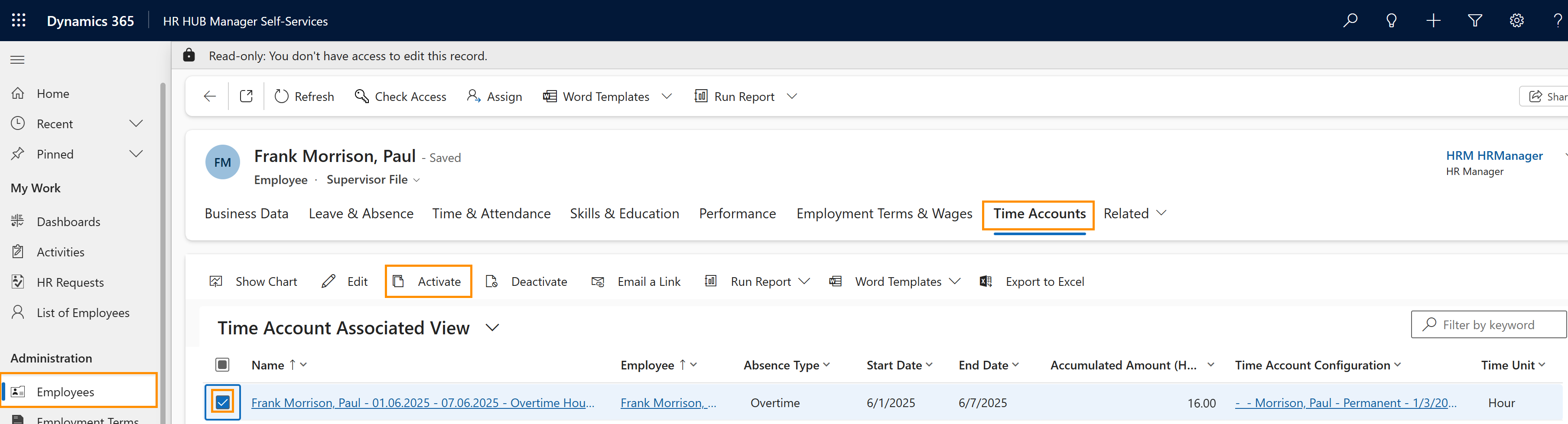
- Click on Employees
- Open the desired employee's file
- Inside the employee's file, click on the tab Related
- Click on Time Account
- Select the record to be approved
- Click on Activate in the ribbon
- Select Approved
- Click on Activate
Hint
- You can also open the record and approve individual attendance records inside.
- Supervisors only can do this for employees under their management.
- You can also reject those hours, which then won't be considered for entitlement.
- Only after the Time Accounts are approved, the employee will have them as entitlement to request a leave type Overtime.
- Time accounts also can be negative, in the case an employee works less hours than the allocated hours.
Result
Tips & Tricks
If you were not able to approve your Employee's Overtime as described above, please contact your HR department and have them check the following settings:
- HR Manager enabled the absence type Overtime for Self-Services
- HR Manager configured the Time Account correctly
- Employee has a valid Employment Term including work hours
- HR Manager added the Time Account to the Employment Terms
- All involved users must have a valid license assigned