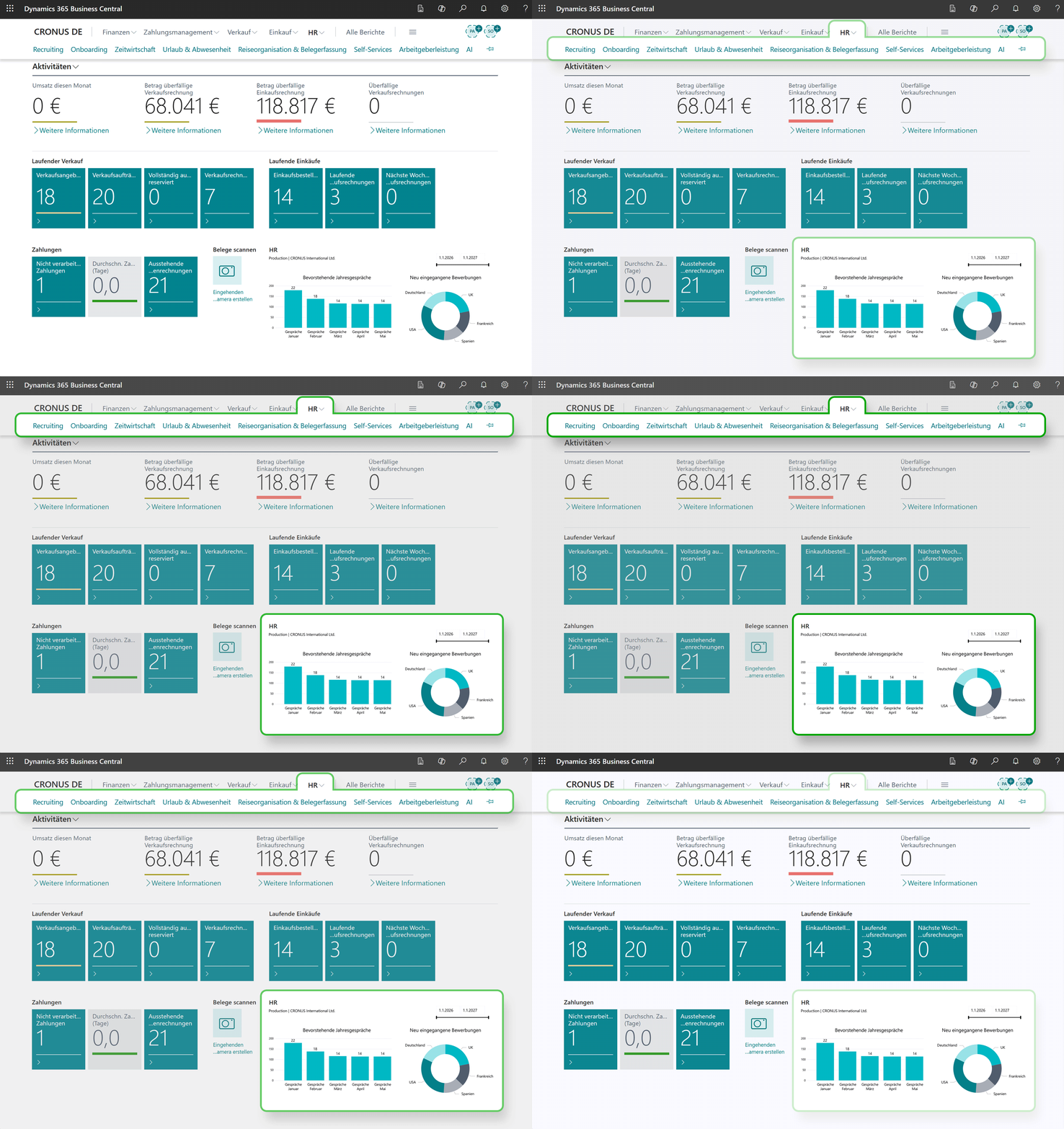
This guide shows you how to embed Hubdrive HR into the menu structure of Microsoft Business Central – see screenshot below.
Embed Hubdrive HR into the Business Central interface
Objective
Click Through
Hubdrive HR can be fully integrated into the interface of Microsoft Business Central. There are several options.
In this example, the integration is done using a Role Center extension: you add a main menu item HR in the navigation pane with submenus for Recruiting, Time Tracking and Employee File. Since Role Center actions do not support OnAction() triggers, it is recommended to open external Hubdrive HR links via separate codeunits that are launched using RunObject and internally call "Hyperlink(...)". Link
In the Role Center, menus can be structured hierarchically, meaning you can define a main item with subitems. Microsoft refers to this as Sections – where group() elements and nested actions or subgroups can be created.
For external webpages, it is important to note: on Role Center pages, action triggers such as OnAction() do not behave as they do on standard pages. Therefore, the recommended approach is to reference a codeunit for each menu action, which then opens the external page using Hyperlink('https://...'). Link
Here is a complete example for an HR menu item with three subitems for Hubdrive HR. The target URLs can be copied from your browser when opening the respective pages.
codeunit 50121 "Hubdrive HR Recruiting Link"
{
trigger OnRun()
begin
Hyperlink('https://hr.hubdrive.com/recruiting');
end;
}
codeunit 50122 "Hubdrive HR Time Tracking Link"
{
trigger OnRun()
begin
Hyperlink('https://hr.hubdrive.com/zeiterfassung');
end;
}
codeunit 50123 "Hubdrive HR Employee File Link"
{
trigger OnRun()
begin
Hyperlink('https://hr.hubdrive.com/personalakte');
end;
}
pageextension 50120 "Hubdrive HR RC Ext" extends "Business Manager Role Center"
{
actions
{
addlast(Sections)
{
group(HR)
{
Caption = 'HR';
action(HRRecruiting)
{
ApplicationArea = All;
Caption = 'Recruiting';
Image = ResourcePlanning;
RunObject = codeunit "Hubdrive HR Recruiting Link";
}
action(HRTimeTracking)
{
ApplicationArea = All;
Caption = 'Zeiterfassung';
Image = Timesheet;
RunObject = codeunit "Hubdrive HR Time Tracking Link";
}
action(HREmployeeFile)
{
ApplicationArea = All;
Caption = 'Personalakte';
Image = Employee;
RunObject = codeunit "Hubdrive HR Employee File Link";
}
}
}
}
}
With "addlast(Sections)", you add the main item to the navigation menu of the Role Center. The three "action(...)" entries will then appear under HR and each open the assigned external Link.
The following elements must be adjusted in your environment.
- The target Role Center, e.g. "Business Manager Role Center" or your own custom Role Center.
- The actual Hubdrive HR URLs for Recruiting, Time Tracking and Employee File, ideally using HTTPS
If you use multiple user profiles, you must apply the extension to the Role Center that is actually in use. Otherwise, users will not see the menu item. The main menu in Business Central is role-based and is controlled via the assigned Role Center. Link
You should also not implement the action directly using OnAction(), even though this is common practice on standard pages. For Role Centers, the codeunit approach using RunObject is the more reliable and documented method. Link
Result