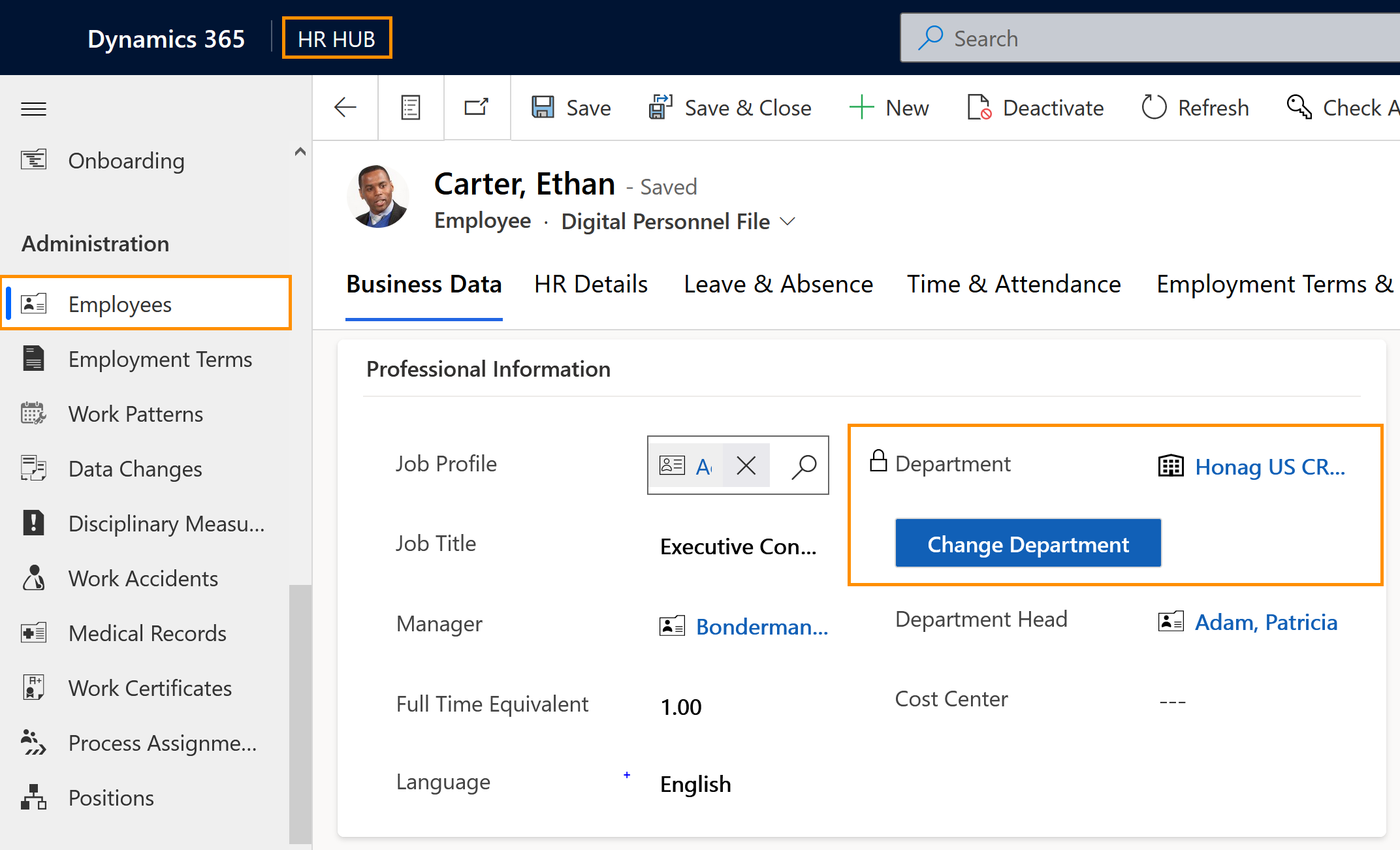
During their working career, an employee may change departments. With a simple step, HR Managers can enter those changes inside the employee's Digital Personnel File.
Assign employee to a different Department
Objective
Process
Employee
Moves to another department
HR Manager
Assigns the new department in the employee's Digital Personnel File
Prerequisites
- Departments have been created
- Employee's Digital Personnel File has been created
- You are HR manager and have a valid license assigned
Click Through
- Start in HR HUB
- Under Administration, click on Employees
- Open the file of the desired employee
- Select the tab Business Data
- Go to the table Professional Information
- Click on the button Change Department
- In the pop-up:
- Select the new department
- Select Yes or No for deletion of previous Business Closure (explanation below)
- Select Yes or No for future Business Closure (explanation below)
- Click on Next
- The employee's department is now being changed. This may take up to a minute.
- Refresh the page to view the changes.
Hint
- If the old department had a Business Closure created and rolled out to the employee, as soon as you assign the employee to a new department, a dialog box will give you the option to cancel the Business Closure that was previously assigned to that department.
- Also, the dialog box will give you the option to roll out to the employee any available Business Closure for the new department.
Result
As a result, you will be able to see the new department assigned to the employee inside the Digital Personnel File.