Careful: This tutorial can only be used by accessing the old Advanced Settings that are going to be deprecated by Microsoft. As long as the old Advanced Settings can still be accessed, this tutorial remains available.
Please note that you can only allow access the old Advanced Settings with System Admin credentials.
To allow access to the old advanced settings, follow these steps:
- Start in the Power Platform Admin Center
- Click on Environments
- Select the correct Environment
- Click on Settings in the top ribbon
- Click on Product and then on Features
- Scroll down to Environment settings behavior and switch off Advanced Settings Redirection
- Click on Save
- Give it some time to update!
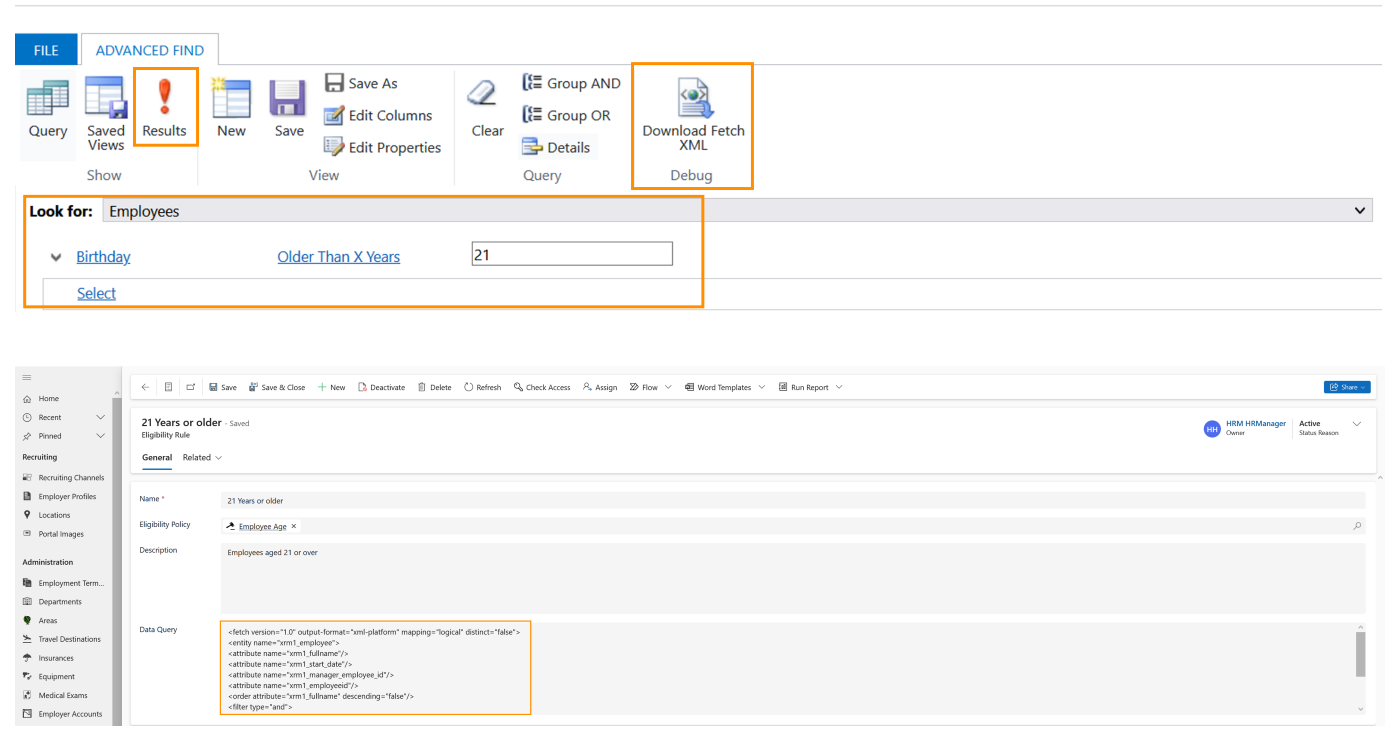
After the old Advanced Settings have been activated, you can get the FetchXML data query as follows:
- Start in HR HUB
- Click on the gear icon in the top right
- Select Advanced Settings
- Go to Advanced Find (filter icon, top right in ribbon)
- A separate window will open for 'Advanced Find'
- Using Look For drop down menu, select what you would like to set at the core of your rule
- Using Select drop down menu below Look For, select the field needed for your Eligibility Rule
- Next field displaying On change to required function
- e.g. Older than 'X' years
- Enter Text to set criteria
- e.g. 21 - this will display employees with an age of at least 21 (+ 1 day)
- Select Results in ribbon to confirm the process displays the results as required
- Continue process if further detail is necessary
- When all needed details are entered, select Download FetchXML
- Enter the downloaded record
- Copy the FetchXML data and enter in to the field Data Query inside the Eligibility Rule
- Save the Eligibility Rule
- Repeat those steps until all your Eligibility Rules have FetchXML data entered into them