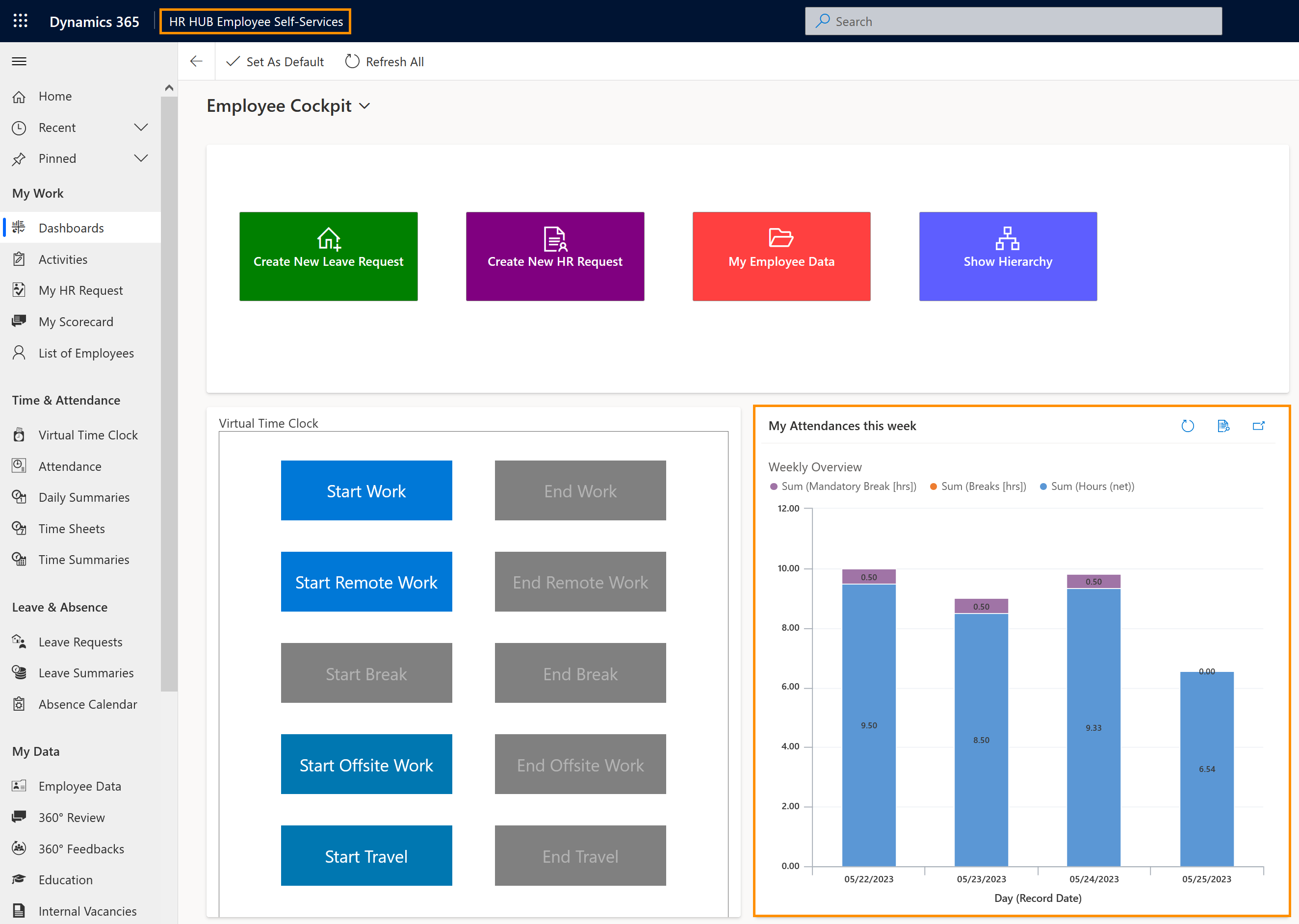
This page describes how employees can see their visualized attendances for the current week.
Employees: Check daily and weekly attendance balances in dashboard
Objective
Process
Employee
Register attendances with Virtual Time Clock or Terminal
Employee
Navigate to Dashboard to see tracked attendances
Click Through
- In HR HUB Employee Self-Services
- Access the Employee Cockpit
- Under My Attendances this week, your attendances are displayed
Hint
- Employees can control their daily attendance by selecting the entity Attendance, on the left side menu. Here, they can see the general details about attendances on a specific day.
- For a more complete visualization, they can also visualize by using the Daily Summaries entity.
Result
Tips & Tricks
In case you were not able to view your attendances as described above, please contact your HR department and have them check the following settings:
- Employees must have a valid license assigned
- Attendance Calculation Configuration has been done
- Mandatory Break configuration has been done
- Time summaries must have been created
- Optional, if used:
- Work patterns have been configured
- Shift settings have been configured
- Badge has been configurated (if Time Clock Terminals are used for Attendance tracking)