With the help of Key Results, you are given quarterly sub-goals. These sub-goals are more project or task-oriented. You can use a slider to measure progress and set your Key Result to a maximum of 100% when achieved.
Employee Self-Service: Track Progress on Key Results
Objective
Process
Supervisor
Creates Key Results
Employee
Sets the Key Result to 'Agreed'
Employee
Works on Key Result and tracks their Progress
Supervisor
Monitors Progress
Click Through
- Start in HR HUB Objectives & Key Results
- The My OKR Progress Dashboard opens
- The first diagram shows the progress of your active Key Results this quarter
- Next to it, you find the list of corresponding entries
- If Key Results have been assigned to you, click on the respective entry
- Alternatively, you can click on Key Results under OKR and the view My active Key Results will open, from which you can also access the individual Key Results
- You now see the prepared Key Result your Supervisor has created
- When opening it for the first time, the Status Reason of the Key Result is still Idea
- Read the description. If everything is clear, you can change the Status Reason to Agreed.
- From then on, you can work on the Key Result. The tracked progress will also be passed on to the Objective above.
- Your Supervisor can now monitor the tracked progress of your Key Result.
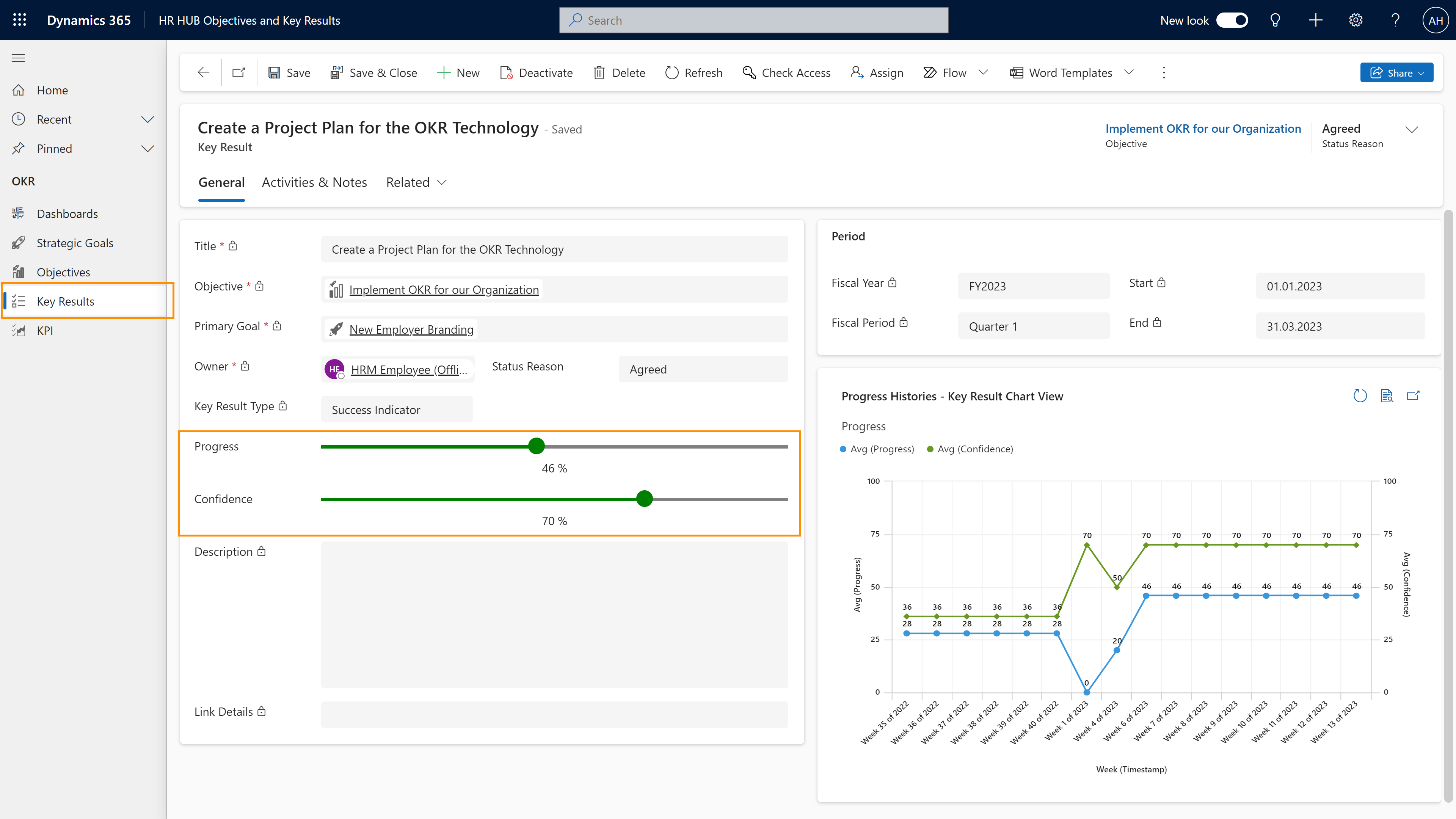
- Move the progress slider to indicate your progress (in %)
- The confidence slider will inform your supervisor how realistic it is that the Key Result will be achieved. Confidence is broken down as follows:
- 100%: Will certainly come or has already been achieved
- 70%: Challenging but feasible
- 50%: Very difficult
- 30%: Unrealistic
- 0%: Completely impossible
- After updating the Progress and Confidence, Save & Close
Hint
- Always provide your Supervisor with realistic values in terms of confidence, as this will signal in time that you need help with the Key Result, for example.
Result
Here, you can see a Key Result and the progress tracking.
Tips & Tricks
If you can't track the progress of your Key Result as described above, please contact your HR department and have them check the following: